Showing posts with label guide. Show all posts

Thursday, 8 August 2013

World of Warcraft Gold Strategy Guide | Eric's Book!


Towards the end of last year, I received an unusual email asking me if I'd like to be a reviewer for a new gold making book that was being written. I hesitated at first as they didn't initially tell me who the author was but that was soon cleared up by a DM from Eric (@Xsinthis) on Twitter! Once I knew it was Eric Dekker, I was definitely curious to learn more & so began my journey as a technical reviewer! If you haven't come across the WoW Wealth Survey before, Eric is the creator of that too. If you have a read of that, you will understand why I looked forward to his book!

I'd receive a few chapters at a time & then added notes to the file to either clarify, correct or suggest stuff - it was interesting to see how Eric's mind worked as his methods are slightly different to my own. I tried to keep my comments constructive & I hope they helped a bit at least! The hardest part for me was writing my own biography paragraph for the credit section!

Fast forward to May this year & at long last, the book, World of Warcraft Gold Strategy Guide was finally published for all the world to see. Due to a small mix-up, I've only just received my physical copy but it looks great & makes a nice change from the online guides. I love real books that I can physically hold & browse through, they have a feel & smell to them that e-readers just don't have!

I don't usually do a sales type post as you will know if you read here regularly but having been so involved with this book, I feel I can safely recommend it to any of my readers who are just starting out in gold making. It covers everything from bank alts, choosing professions, setting up TSM, cross faction trading & getting the most out of expansions & patches. I think Eric has done a great job of explaining everything & most of it won't change when a new expansion is released. Yes, the names of top level materials etc will change but the processes & principles that Eric has written about will remain the same so you'll still be able to use the methods he teaches to make gold.

So if you have a few dollars spare or have been considering buying a gold making guide, I really can recommend this one - especially if you like a proper book! It is available for Kindle too, just click on the US or UK link box below & you'll see all the options available.


So there ya go - one of the random happy things that has happened to me over the last year & something I never expected when I started a blog - I guess I can add technical reviewer to my resume now? lol


****************

Check out some of my Squidoo lenses!

Friday, 21 September 2012

Zygor Guides - Fully Updated & Improved for Mists of Pandaria


With the release of Mists of Pandaria looming ever closer, I thought I'd mention Zygor's Guides in its own post as I believe it is one of, if not the best WoW leveling guides out there. I began using Zygor's Leveling Guide way back when I first started playing. My husband had been playing for about 3 months before I caved in & gave it a try myself. He'd got badly lost on his first character & almost quit until he found this fantastic WoW leveling guide so when I did start playing, I used it too.

Now this was before Blizzard improved the quest log, quest tracking, map system & before they added the little tips you get in the starter zones. I remember clearly googling for hours, looking for a 'how to play WoW  guide' or 'leveling in WoW' article of some sort. Having never played an RPG or any other MMO before, I was totally lost but Zygor's Guide gave me the directions I needed in game to get my first character moving.

I use Zygor's Guide every time I start a new character - not because I really need it now for the Alliance characters but because I just find it so easy to use & I got lazy! I recently started a new account on the US servers & have been playing Horde seriously for the first time. It's like being a newbie again! I don't know where anything is - flight paths, profession/class trainers even inns but this wonderful WoW leveling guide takes me exactly where I need to be & has reduced some of the frustration for me.


Since I first started using Zygor's WoW leveling guide, they have added several brilliant features, including a Loremaster section - this helped me find all the quests I had missed when questing & I when I eventually knuckled down to it, I got my Loremaster achievement fairly easily.

So why am I only just talking about this now? Well, of course, Mists of Pandaria is launching just 4 days from now & the busy people over at Zygor's have been hard at work preparing the updated version of the Leveling & Loremaster Guide as well as introducing some fabulous new Guides too. I especially like the look of the Dungeons & Gear Guide as I often spend a lot of time, trying to find gear upgrades, even whilst leveling.

So far, they've announced that they will have guides ready for all of the following World of Warcraft topics, available on September 24th - the day BEFORE Mists of Pandaria releases:

* Leveling and Loremaster
* Dailies and Events
* Dungeons and Gear
* Professions and Achievements
* Pets and Mounts
* Titles and Reputations

On top of ALL that new content, they've managed to add a boat load of new features to their guide software.  It's all stuffed into a sleek and powerful package they're calling Zygor 4.0.  They're not finished revealing all of the new features, with more coming over the next couple of days, but what they've revealed so far is brilliant!  This is really something you have to see to believe, so head over there and check out the videos they've released so far.


Blizzard has predicted that Mists of Pandaria will be one of, if not THE largest and most successful World of Warcraft expansions yet. I'm also seeing quite a buzz on Twitter & whilst some folks are still decidedly unimpressed with the whole Panda thing, I am super stoked to get my alts moving. Sadly I have to wait a full week until after launch as I'm currently away from home with no access to my EU account *insert sad panda face here* (pun totally intended by the way!). I also don't have access to my Zygor's WoW leveling guide here so my first steps into Mists of Pandaria are likely to be tentative to say the least!  Go check out the stuff Zygor Guides is doing so you can be prepared to dominate all of this new content right from day one.


Friday, 11 March 2011

TSM - Part Two - Crafting & Posting Glyphs

So here we go - part 2 & I hope this doesn't get confusing! I'll try & run through it in the order that I run as part of my routine so it will involve a little jumping around :)

First off, go to the Auction House & open your usual browse window. In the top right hand corner, you'll see a new box marked TSM - this is your open/close button for the pop out menu, shown below. Button 1 is your Post, button 2 is your Cancel, button 3 is the Scan menu, button 4 is the milling/prspecting shopping button & button 5 is your Shopping - crafting mats. The ones I haven't labelled are ones I don't generally use & certainly not for part of my glyph process so I've left them out for now.


I numbered the buttons from top to bottom but actually the first one I use is Button 3! This is the scan button which brings up its' own sub menu, shown below. If you have more than one profession set up for use with TSM you can click as many or as few of these categories as you like. I tend to scan just for the craft I'm working on as it's quicker & then my data is current for the relevant craft. Scanning for inscription only will look at all herbs, pigments, inks & glyphs, as well as any of the other miscellaneous items used for relics, tomes & decks. I'm guessing but this scan takes maybe 1-2 minutes at the most.


Before I go any further, I touched on this in yesterday's post - I preset my ink prices so that each ink/glyph group can have it's own threshold. In the window below, you can see I have Midnight & Lion's Ink preset at 5g per ink - this means that my threshold for these glyphs can be as low as 17g (3xink + parchment + AH 5%). This price shows up later in the process when shopping so I always know how much my maximum ink price is for any given set of glyphs.

To set these prices, go to the main TSM window (from your minimap icon), press the inscription button on the left hand side then choose Materials from the list. You have to put a tick in the Override box then enter your maximum ink price & hit 'okay'. Done! This is a preset so you only need to change it when your server prices for herbs change or if you find you under/over estimated ink costs.


After scanning, close down the AH window & open up your usual Craft window. At the top left, you will see a button for Open TSM Crafting, which opens this restock window. At the left hand side, you will see your ink categories (which we set up yesterday). If you hit the big 'Restock Queue' button, it will produce a list of glyphs to craft (on the right hand side) and a shopping list at the bottom left. In the last day or so, this module has been updated to included Inks & pigments in your shopping list so that makes life a lot easier!

The one thing I haven't quite worked out is why it didn't add in Glyph of Flame Shock & Glyph of Immolation Trap - it says they meet my profit criteria & I don't have any on other alts or anything either. All I do with these is a quick double check at the AH. Close down Craft window, reopen AH window & browse for these two - if they are still at profit & not too many of them, I add them to the craft queue manually.

To add or remove glyphs manually, you just left or right click the glyph name in the left hand list.


So we now have a list of glyphs required to restock & it's created a shopping list for us - time to go shopping! When I am having a buying/crafting session, I use button 5 the 'Shopping - Crafting mats' button. Open your AH browse window, open the pop out menu. It imports my shopping list to the bottom half of the window & searches the current listings for inks, pigments & herbs - sorted by the cheapest first. Your preset ink price is shown alongside the ink in the bottom window - in this screenshot it says 6g (old screenshot - I've updated since then!!).

Alongside the big BUY button, it shows how many available & price as well as the price per ink - watch this price & click buy for as long as it stays below your preset price. Once the ink price goes above your preset price, you can either make an executive decision to continue buying or you can hit the 'Skip Current Item' button at the very bottom of the window. If there is enough supply to fulfill your shopping list, it will skip to the next ink type once you have enough of this one.


At this stage, it's time to collect your herbs from the mailbox & do the usual milling routine. Then re-open your Inscription window, reopen the TSM page & hit the big 'Craft Next' button. If there weren't enough herbs available at your preset price, you can narrow down the list of glyphs by clicking the 'On Hand Queue' button. I'm not 100% positive but I think the parchments may be a limiting factor here so go get what you need before you shorten the queue!

With the recent change, actually making the ink is now part of this queue so it's time for a quick coffee/smoke break if you have a lot of inks to craft. I sometimes prefer to do this the old fashioned way so that I can process the inks by volume - i.e biggest workload first while I go get coffee then sit through the smaller ink craftings. Unfortunately, you still need to click when the item type changes - good of ToS :(

Once you have clicked your way through all the glyphs in your craft list, it's time to post! Back to the AH browse window, open the TSM pop out menu & hit button 1. It will scan & queue all the glyphs in your bags ready to be posted. If any prices have changed whilst you were crafting, you may end up with a few left in your bags as it won't post any that fall below your threshold (unless you set it to post at fallback, covered yesterday). I had a measly 4 to post when I took this screenie but usually it's upwards of 200 on my main scribe.

You can start clicking the 'Post Auction' button while it's still scanning/queueing but 200 still takes maybe 2 mins max, including my clicking time :) If you click slowly, you will see the details of each post so if you've made an error somewhere or it wants to list something you don't want it to list - just click the 'Skip Item' button at the bottom. Once you gain some confidence in what TSM is doing & that you're happy with your groups/prices etc, you will be able to click like a madman.


It will post at your preset undercut amount or your fallback, depending on your settings. The Cancel process is exactly the same except it's button 2 and it only cancels auctions which have been undercut! This is why I love TSM - 2 minutes to cancel 200 auctions & 2 minutes to repost them all (mailbox is the limiting factor for speed here).
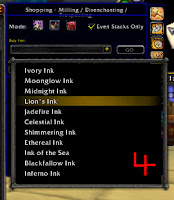
As a last bit of information, I also use button 4 on the AH TSM pop out menu - this is the 'Shopping - Milling/Disenchanting & Prospecting' button. I use this on days in between major glyph craftings to pick up herbs at low prices - a bit like a snatch list I suppose. Click 1 of the 3 buttons at the top (mill/prosp/disench) then pick your ink from the drop down list and hit the 'Go' button. The display is very similar to your shopping list buying page but it doesn't show you your preset ink prices so bear those in mind. If you buy these 'cheap' herbs regularly & mill as you go, it certainly cuts down on the pain of a major glyph crafting session!


So that's pretty much it! I hope this helps you as much as it did me. I now cancel/repost maybe 4 or 5 times a day & my glyph sales have shot through the roof. You still need to bring your brain to the party as no addon is foolproof but once you gain confidence with it, setting up multiple professions is pretty much the same. I think TSM is really, really useful for glyphs because of the facility to group by inks & therefore, to preset your ink prices & thresholds by ink rather than by class or whatever.

I've also started using TSM for my Cata JC rare gem cuts & for my cata enchants - seeing the possible profit figures at any one time certainly make it easier to avoid the low profit scrolls that I still have a bag full of from pre-TSM!

As always, feel free to ask questions - I'll answer as best I can. Good luck & happy glyphing.

Thursday, 10 March 2011

TSM - Basic Set Up Guide for Glyphs

I promised Alto a guide for TSM for his Glyphs so here's the first part - the set-up. Fluxdada at Power Word:Gold did a great video on this yesterday but I do mine slightly differently & also if you can't watch video at least you can read mine, hey? lol

Now I have a disclaimer to make - I've never used any of the other addons for glyphing so although I have been extolling the virtues of TSM for glyphs, in reality, I have nothing to compare it to!

I used to go to the AH & check, class by class, for which glyphs had the highest sale price, then I would make those if the herb prices were sensible. I listed them for 48 hrs & rarely if ever, cancelled & reposted them. For me, it's the ease of buying herbs within a set price range & the cancel/repost function that has me raving about TSM. If you already have an efficient system, I guess changing to TSM may not be your best option but hey ho, I'm sure there are some readers out there who scrabble through as I was, so maybe this can help them :)

So what I've done here is to take a load of screen shots & numbered various things. I'll talk through each 'number' & hope it flows logically enough for you to follow.


This bit is very brief! Number 1 is the 'Craft options' button & number 2 is the 'Auctioning groups' button.


OK, so press the Craft Options button (#1) and this is what you get on the Data tab at the top there. Number 3 is a drop down menu - I like to use the AuctionDB - Minimum buyout option for mat prices & craft prices - this is the TSM database from the scan I'll show you later. My Auctioneer is playing up a little so I haven't kept those scans up to date. The TSM scan is so quick as well that I can run it every 5 minutes with no pain, if needs be!

The 'profit deduction' slider is set to 5% which is the AH cut - if you're posting on the Neutral AH, you may want to adjust this here.

Number 4 is where I originally had problems - I have 2 alts with inscription but on different servers so make sure to pick up the correct alt name from this drop down menu. If you craft glyphs (or anything else, for that matter) then send to a banker for selling, pick up the banker alt name here too. The same goes for the Guild drop down box alongside - if you have glyphs stored in a seperate guild bank, pick up both guilds here.


Next up is the Craft Management Window tab - the only things I change here are the Max Restock Quantity & the Minimum Profit (number 5). Both are fairly self explanatory & totally up to you how you set them. 


Moving on to the Profiles tab, I believe the first alt you set up anywhere in game on TSM, becomes the default profile! This took me a while to work out as I added a second & third alt before realising that I couldn't use the same default for everyone! So, before you go much further, put your current alt's name in here at Number 6! If you want different profit amounts depending on which alt, you will need to go back to box Number 5 & change it once you have a new profile set up. ie I set this up for AHAlt then when I go to Mainalt, I change the profile name/set up new profile & it will bring these values in unless I change them.


So at last, we get to the Inscription window! Click the icon to the top left & then the Options button in the left hand list. The first thing you will see is a list by class - I prefer to sort by ink as it makes pricing & buying herbs much, much easier. So just click 'ink' in the drop down menu at number 7. 


 Now at this point, we still haven't imported any of our profession skills/items so click 'Crafts' in the left hand menu then click 'Force rescan etc etc' button (Number 8). This should open your normal profession window behind this screen then close it again once it has imported your craftables. I've had a problem here once or twice so I either just log out & in again or do a /reload which seems to fix it.


Hopefully this will have imported all the glyphs/items you can make so now click an ink in the left hand list - I've picked Midnight Ink. You can see it has brought in all the glyphs I can make with Midnight Ink but none of them are selected. Pressing 'Enable all crafts' button at number 9 will pick up every glyph in this list.

Now, when I set up for the first time, at this point I click 'Create Auctioning Groups' which brings up a pop-out (marked 10a). Just click the large 'add crafted items from this group etc etc' button & it will automatically create a new group called 'inscription - midnight ink'. Now if you have already set up or are going to set up seperate profession groups, the category box will need to be used - the drop down menu will show you your 'master groups' as it were & just pick from there.


If you are still learning new glyphs, they won't appear in a group until you put them there. Go back to ink group page (#9 above) and tick the new item to 'enable it' then click the box marked number 11 and this box will pop up - in the drop down menu (at 11a), pick the name of the group to add your item to (in this case, midnight ink)  & hey presto, your new glyph is now in your crafting & auctioning groups. 


Now we go to the auctioning group button (number 2 on the first screen shot!) & you will see your crafting by inks list on the left hand side  are now showing as auctioning groups as well. This is where we set up our undercut amount, our threshold & fallback. In the screenshot below, I have marked the 'Categories/Groups' with a red blob - this is your override settings so if you forget to set amounts for individual groups, these are the settings that it will default to.

Post Time & Post Cap are both easy - as is the undercut amount - I hate those guys who undercut 1copper so I usually put a random amount in here! At number 12 I have set my minimum price at 25g & my fallback at 138g but at the very bottom of the screen is a drop down menu which allows you to decide what TSM will do if the price falls below your threshold. Somehow I managed to miss it in the screenshot but I have mine set to 'don't post' so it never posts below 25g. 


So that's pretty much the set-up covered. You can see below that I have a different Price Threshold for my Midnight Ink category. On my main inscription alt, I have a different threshold for each ink group depending on my ink prices but I'll show you that tomorrow when I cover the crafting & cancel/repost parts of TSM.


I think I've covered most of the basic set up stuff. If you think I missed something or you want further clarification, please leave a comment - this is my first 'tutorial/how-to' so I doubt I got it all first time :) I'll cover crafting, restock queues, posting & scanning in part 2, currently planned for tomorrow, real life permitting.